
Azure Service Bus topics publish an event to independent subscriptions, whose filters decide which messages each subscriber receives. The .NET SDK supports manual settlement, dead-letter inspection, and duplicate detection. These features simplify routing and recovery, but PeekLock consumers still need idempotency because failed or uncertain settlement can cause redelivery.
When Should You Use a Topic?
Most Azure Service Bus tutorials stop at queues: send a message, process it, complete it. I covered that ground in messaging made easy with Azure Service Bus, so I won't repeat it here.
This article is about the features you reach for once the basics work: topics for publish-subscribe, subscription filters for broker-side routing, and a strategy for dead letter queues.
If you're coming from RabbitMQ, the mapping is: topics are like fanout exchanges, subscriptions are like bound queues, and filters replace routing keys.
Set Up the .NET Client
Use a Standard or Premium Service Bus namespace; the Basic tier does not support topics.
Create an order-events topic and an inventory-service subscription before starting the sample.
Provide ConnectionStrings:ServiceBus through your configuration provider with permissions for the operations being demonstrated; use workload identity and least-privilege roles in production.
dotnet new worker -n ServiceBusDemo --framework net10.0
cd ServiceBusDemo
dotnet add package Azure.Messaging.ServiceBus --version 7.21.0
Replace the generated worker registration in Program.cs with:
using Azure.Messaging.ServiceBus;

var builder = Host.CreateApplicationBuilder(args);
builder.Services.AddSingleton(_ => new ServiceBusClient(
    builder.Configuration.GetConnectionString("ServiceBus")
        ?? throw new InvalidOperationException("Missing ServiceBus connection string.")));
builder.Services.AddSingleton(sp => sp.GetRequiredService<ServiceBusClient>()
    .CreateSender("order-events"));
builder.Services.AddSingleton<EventPublisher>();
builder.Services.AddHostedService<InventoryEventProcessor>();
using var host = builder.Build();
await host.RunAsync();

public sealed record OrderPlaced(
    Guid EventId, Guid OrderId, long TotalAmount, string Region);
TotalAmount is an integer number of minor currency units in this example, so it is a supported AMQP property type and routing does not need floating-point money comparisons.
Keep EventId stable when retrying publication of the same event.
Place the classes below in separate files with using Azure.Messaging.ServiceBus; and using System.Text.Json;.
The worker template supplies hosting and logging imports.
Topics and Subscriptions
A queue distributes delivery attempts among its consumers. A topic delivers a copy of each message to every subscription.
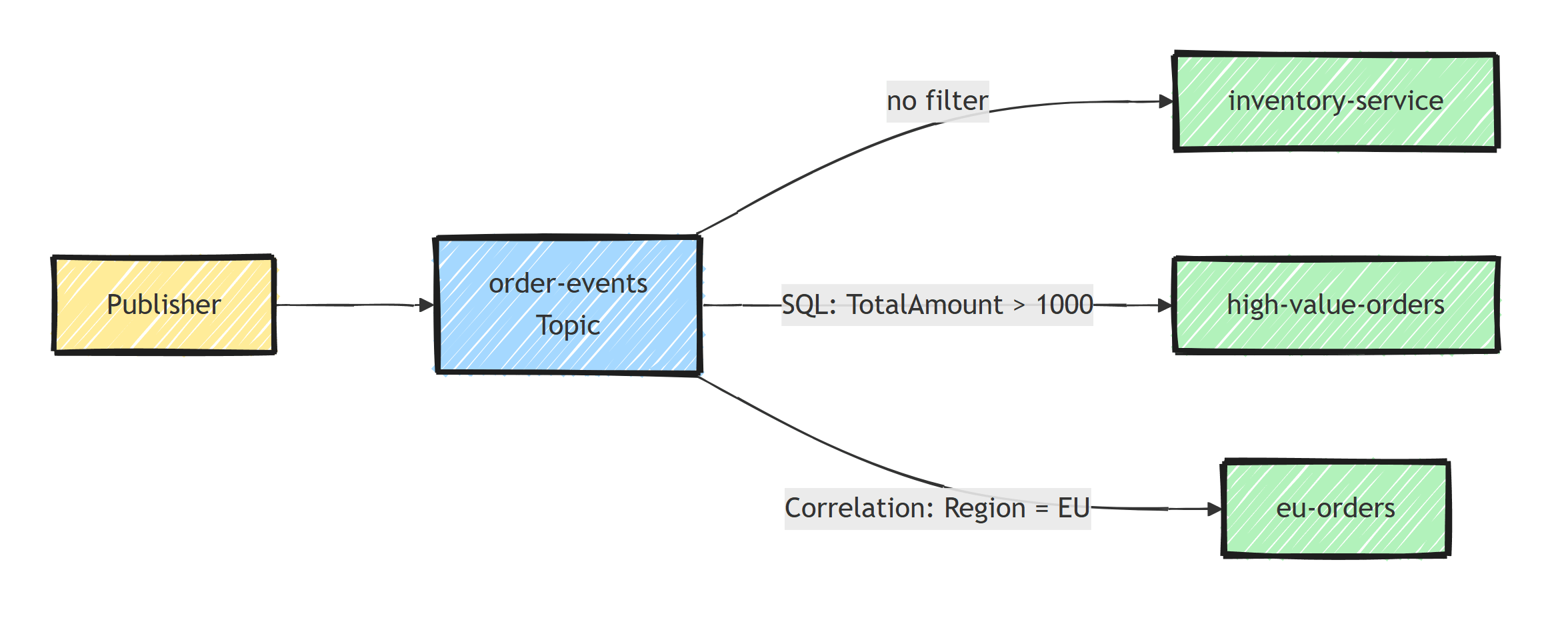
That distinction maps to intent:
- Queue: a command. "Process this order." One service is responsible.
- Topic: an event. "An order was placed." Inventory, notifications, and analytics all care, independently.
Publishing to a topic uses a sender for that topic, which is registered once and reused:
public sealed class EventPublisher(ServiceBusSender sender)
{
    public Task PublishAsync(OrderPlaced order, CancellationToken ct = default)
    {
        var message = new ServiceBusMessage(JsonSerializer.SerializeToUtf8Bytes(order))
        {
            ContentType = "application/json",
            Subject = nameof(OrderPlaced),
            MessageId = order.EventId.ToString()
        };
        message.ApplicationProperties["TotalAmount"] = order.TotalAmount;
        message.ApplicationProperties["Region"] = order.Region;
        return sender.SendMessageAsync(message, ct);
    }
}
Each consuming service processes its own subscription with a ServiceBusProcessor:
public sealed class InventoryEventProcessor(
    ServiceBusClient client,
    ILogger<InventoryEventProcessor> logger) : BackgroundService
{
    protected override async Task ExecuteAsync(CancellationToken stoppingToken)
    {
        await using var processor = client.CreateProcessor(
            "order-events", "inventory-service", new ServiceBusProcessorOptions
            {
                MaxConcurrentCalls = 5,
                AutoCompleteMessages = false
            });
        processor.ProcessMessageAsync += HandleMessageAsync;
        processor.ProcessErrorAsync += args =>
        {
            logger.LogError(args.Exception, "Service Bus error: {Source}", args.ErrorSource);
            return Task.CompletedTask;
        };

        await processor.StartProcessingAsync(stoppingToken);
        try
        {
            await Task.Delay(Timeout.Infinite, stoppingToken);
        }
        catch (OperationCanceledException) when (stoppingToken.IsCancellationRequested) { }
        finally
        {
            // Allow active callbacks to finish before disposing the processor.
            await processor.StopProcessingAsync(CancellationToken.None);
        }
    }

    private async Task HandleMessageAsync(ProcessMessageEventArgs args)
    {
        OrderPlaced order;
        try
        {
            order = JsonSerializer.Deserialize<OrderPlaced>(args.Message.Body)
                ?? throw new JsonException("Expected an order event.");
        }
        catch (JsonException)
        {
            await args.DeadLetterMessageAsync(args.Message,
                "InvalidJson", "Expected an OrderPlaced JSON object.", args.CancellationToken);
            return;
        }

        // Transport demonstration only. Commit idempotent business work here.
        logger.LogInformation("Inventory event for {OrderId}", order.OrderId);
        await args.CompleteMessageAsync(args.Message, args.CancellationToken);
    }
}
Exceptions from a handler are reported to ProcessErrorAsync; the processor abandons an unsettled message when the handler throws.
The example's only side effect is a log entry, so it does not pretend to update inventory.
When adding database work, create an async scope per delivery and commit an inbox record with the business transaction.
DeadLetterMessageAsync moves malformed JSON directly to the subscription DLQ.
Transient handler failures can be redelivered up to the entity's delivery limit.
A settlement failure can follow successful business work, so do not interpret every exception as proof that nothing happened.
Subscription Filters
By default, every subscription receives every message published to the topic. Filters change that: they're rules evaluated on the broker, so messages a subscription doesn't care about never cross the network.
SQL Filters
SQL filters evaluate expressions against message properties:
using Azure.Messaging.ServiceBus.Administration;

var connectionString = Environment.GetEnvironmentVariable("SERVICE_BUS_CONNECTION_STRING")
    ?? throw new InvalidOperationException("Missing administration connection string.");
var adminClient = new ServiceBusAdministrationClient(connectionString);

await adminClient.CreateSubscriptionAsync(
    new CreateSubscriptionOptions("order-events", "high-value-orders"),
    new CreateRuleOptions(
        "HighValueFilter",
        new SqlRuleFilter("TotalAmount > 1000")));
Only messages with an application property TotalAmount greater than 1000 reach this subscription.
The EventPublisher above sets TotalAmount and Region as application properties.
Filtering does not inspect the JSON body, so leaving those properties out changes routing even if the body contains the same fields.
Correlation Filters
When your condition is a plain equality match, use a correlation filter instead. Correlation filters have lower processing overhead than SQL filters for equality matches:
await adminClient.CreateSubscriptionAsync(
    new CreateSubscriptionOptions("order-events", "eu-orders"),
    new CreateRuleOptions(
        "EuRegionFilter",
        new CorrelationRuleFilter
        {
            Subject = "OrderPlaced",
            ApplicationProperties = { ["Region"] = "EU" }
        }));
Use correlation filters for routing by event type or tenant, and SQL filters only when you need comparison operators.
The Default Rule Gotcha
Creating a subscription without an explicit rule adds a $Default rule that matches everything.
The creation overloads above supply the intended rule atomically, avoiding that initial match-all window.
If you add your own rule without removing it, the subscription receives all messages anyway, because rules are OR-ed together:
await adminClient.DeleteRuleAsync(
    "order-events", "high-value-orders", RuleProperties.DefaultRuleName);
Delete $Default only when that rule actually exists; the explicit-rule examples above do not create it.
Dead Letter Queues
Every queue and every subscription has a built-in dead letter subqueue. Messages land there for a handful of reasons:
- MaxDeliveryCountExceeded: the message was received and abandoned too many times (default max delivery count: 10)
- TTLExpiredException: the message expired and
DeadLetteringOnMessageExpirationis enabled - Explicit dead-lettering: your code called
DeadLetterMessageAsyncfor a poison message - Filter evaluation errors: a SQL filter failed and
EnableDeadLetteringOnFilterEvaluationExceptionsis enabled
I went deeper on the pattern itself in dead letter queues: handling failed messages; here's the Service Bus specific mechanics.
Processing the DLQ
Use a peek operation to inspect failures without removing them:
await using var receiver = client.CreateReceiver(
    "order-events", "inventory-service",
    new ServiceBusReceiverOptions { SubQueue = SubQueue.DeadLetter });

foreach (var message in await receiver.PeekMessagesAsync(10))
{
    Console.WriteLine($"{message.MessageId}: {message.DeadLetterReason}");
}
Here client is the registered ServiceBusClient, or one constructed from your connection string in a separate console tool.
Peeked messages cannot be settled.
For replay, receive using PeekLock and complete only after durable archival or a successful resend.
Every subscription has its own DLQ, so monitor each subscription rather than only the topic.
Resubmitting Messages
There's no built-in "retry from DLQ" button in the SDK. Resubmission means copying the message back to the main entity:
static async Task ResubmitAsync(
    ServiceBusReceivedMessage deadLettered,
    ServiceBusSender sender, CancellationToken ct = default)
{
    var retryCount = deadLettered.ApplicationProperties
        .TryGetValue("ResubmitCount", out var count) ? Convert.ToInt32(count) : 0;

    if (retryCount >= 3)
    {
        throw new InvalidOperationException("Replay limit reached; leave the DLQ message for review.");
    }

    var replayKey = $"{deadLettered.MessageId}:replay:{retryCount + 1}";
    var replayHash = System.Security.Cryptography.SHA256.HashData(
        System.Text.Encoding.UTF8.GetBytes(replayKey));
    var clone = new ServiceBusMessage(deadLettered)
    {
        MessageId = Convert.ToHexString(replayHash)
    };
    clone.ApplicationProperties["ResubmitCount"] = retryCount + 1;

    await sender.SendMessageAsync(clone, ct);
}
The ServiceBusMessage(ServiceBusReceivedMessage) constructor copies the body and properties for exactly this scenario.
Complete the received DLQ message only after this helper succeeds.
The deterministic, bounded-length replay ID avoids reusing the original transport ID, which duplicate detection could otherwise silently discard; keep the original business event ID in the body for consumer idempotency.
Sending and completing are separate operations here, so a crash can still cause a duplicate.
Resending to the topic broadcasts again to every matching subscription, including ones that already succeeded; use an approved repair route when replay should target only one subscriber.
Supporting Features Worth Enabling
These smaller features round out a production topic setup.
Duplicate detection: set a stable MessageId when publishing, and enable duplicate detection on the entity. Service Bus then drops messages with a repeated MessageId inside the detection window. This gives you effective at-most-once publishing from retrying producers. Pair it with idempotent handlers on the consumer side; the idempotent consumer pattern explains why you still need both.
Sessions: set SessionId to the business key when messages for one aggregate must be processed sequentially. Azure Service Bus sessions in .NET covers session-aware processors, lock renewal, and the head-of-line tradeoff.
Scheduled messages: publish now, deliver later.
var sequenceNumber = await sender.ScheduleMessageAsync(
    message,
    DateTimeOffset.UtcNow.AddMinutes(30));

// Cancel before delivery if needed
await sender.CancelScheduledMessageAsync(sequenceNumber);
Batch sending: for high-throughput publishing, CreateMessageBatchAsync and TryAddMessage respect the broker's size limits and cut round-trips:
static async Task SendBatchesAsync(
    ServiceBusSender sender,
    IEnumerable<ServiceBusMessage> messages,
    CancellationToken ct = default)
{
    using var enumerator = messages.GetEnumerator();
    var hasNext = enumerator.MoveNext();

    while (hasNext)
    {
        using var batch = await sender.CreateMessageBatchAsync(ct);
        while (hasNext && batch.TryAddMessage(enumerator.Current))
            hasNext = enumerator.MoveNext();

        if (batch.Count == 0)
            throw new InvalidOperationException("A single message exceeds the batch limit.");

        await sender.SendMessagesAsync(batch, ct);
    }
}
When a batch fills, the current message stays on the enumerator and is tried in the next batch. The helper sends every batch once and rejects a message that cannot fit by itself.
Summary
Use queues for commands and topic subscriptions for independent event consumers. Prefer correlation filters over SQL filters, remove the default rule when narrowing a subscription, and monitor each subscription's DLQ separately. Duplicate detection reduces repeated sends, but idempotent consumers still protect the processing side of at-least-once delivery.
Frequently Asked Questions
What is the difference between a queue and a topic in Azure Service Bus?
A queue is point-to-point: each delivery attempt goes to one receiver, with possible redelivery. A topic fans out: every subscription gets its own copy of each published message, optionally narrowed down by filters. Use queues for commands and topics for events.
How do subscription filters work in Azure Service Bus?
Filters are rules evaluated on the broker when a message is published to a topic. Only matching messages land in the subscription. Correlation filters match properties by equality and are cheap; SQL filters support expressions like TotalAmount > 1000 at slightly higher cost.
Why do messages end up in the Azure Service Bus dead letter queue?
The most common reasons: the delivery count exceeded MaxDeliveryCount after repeated processing failures, the message TTL expired with expiration dead-lettering enabled, a filter evaluation error occurred with filter-error dead-lettering enabled, or your code explicitly dead-lettered it as unprocessable.
How do I reprocess dead-lettered messages in Azure Service Bus?
Read from the subqueue (queue/$deadletterqueue or the subscription equivalent), inspect DeadLetterReason, fix the underlying cause, and resend a copy of the message to the original queue or topic. There is no built-in requeue; the resubmit is your code.
Does a topic subscription have its own dead letter queue?
Yes. Every queue and every individual subscription has its own dead letter subqueue. With many subscriptions you need DLQ monitoring per subscription, not just per topic.
