# Containerize Your .NET Applications Without a Dockerfile
> Learn how to containerize .NET applications without writing a single line of Dockerfile. The .NET SDK has built-in support for publishing directly to container images.
Published: 2026-01-31. Author: Milan Jovanović.
Canonical: https://milanjovanovic.tech/blog/containerize-your-dotnet-applications-without-a-dockerfile
Since .NET 7, the SDK can publish an application straight to a container image, so you don't need a Dockerfile.
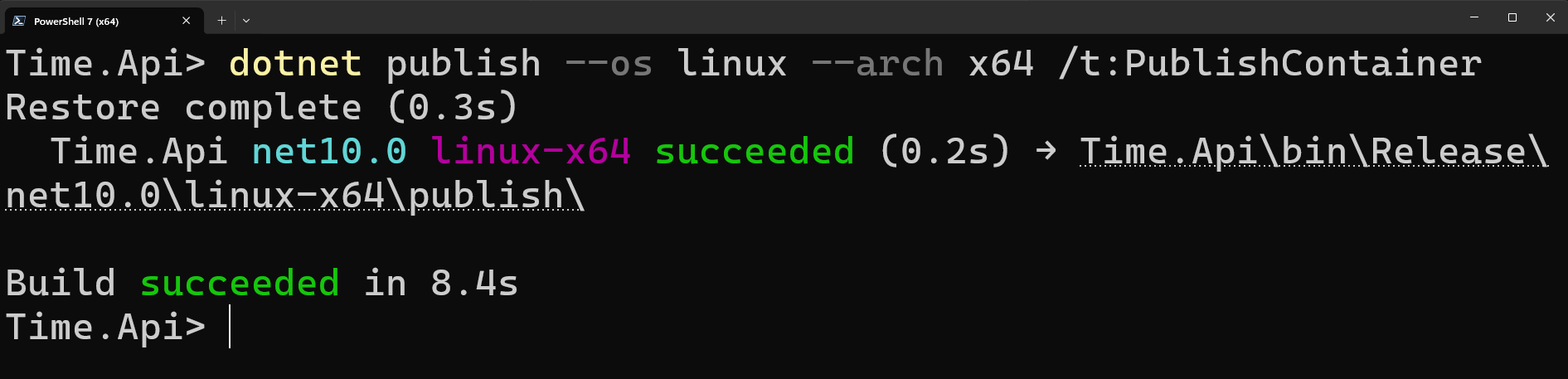
Run `dotnet publish --os linux --arch x64 /t:PublishContainer` and the SDK builds the app, picks a base image, and loads it into Docker.
You customize the image through MSBuild properties in the `.csproj`.
Containers have become the standard for deploying modern applications.
But if you've ever written a [Dockerfile](https://docs.docker.com/reference/dockerfile/), you know it can be tedious.
You need to understand [**multi-stage builds**](https://milanjovanovic.tech/blog/docker-dotnet-developers), pick the right base images, configure the right ports, and remember to copy files in the correct order.
What if I told you that **you don't need a Dockerfile at all**?
Since .NET 7, the SDK has built-in support for publishing your application directly to a container image.
You can do this with a single `dotnet publish` command.
In this week's newsletter, we'll explore:
- Why Dockerfile-less publishing matters
- How to enable container publishing in your project
- Customizing the container image
- Publishing to container registries
- **How I'm using this to deploy to a VPS**
## The Traditional Approach: Writing a Dockerfile
Before we look at the SDK approach, let's see what we're replacing.
A typical multi-stage Dockerfile for a .NET application looks like this:
```bash
FROM mcr.microsoft.com/dotnet/aspnet:10.0 AS base
WORKDIR /app
EXPOSE 8080
EXPOSE 8081
FROM mcr.microsoft.com/dotnet/sdk:10.0 AS build
ARG BUILD_CONFIGURATION=Release
WORKDIR /src
COPY ["src/MyApi/MyApi.csproj", "src/MyApi/"]
RUN dotnet restore "src/MyApi/MyApi.csproj"
COPY . .
WORKDIR "/src/src/MyApi"
RUN dotnet build "MyApi.csproj" -c $BUILD_CONFIGURATION -o /app/build
FROM build AS publish
ARG BUILD_CONFIGURATION=Release
RUN dotnet publish "MyApi.csproj" -c $BUILD_CONFIGURATION -o /app/publish
FROM base AS final
WORKDIR /app
COPY --from=publish /app/publish .
ENTRYPOINT ["dotnet", "MyApi.dll"]
```
This works, but there's a learning curve and maintenance overhead:
- **Maintenance burden**: You need to update base image tags manually
- **Layer caching**: Getting the COPY order wrong kills your build cache
- **Duplication**: Every project needs a similar Dockerfile
- **Context switching**: You're writing Docker DSL, not .NET code
The .NET SDK approach eliminates all of this.
## Enabling Container Publishing
If you're running on .NET 10, you don't need to do anything special to enable container publishing.
This will work for ASP.NET Core apps, worker services, and console apps.
You can publish directly to a container image:
```bash
dotnet publish --os linux --arch x64 /t:PublishContainer
```
That's it. The .NET SDK will:
1. Build your application
2. Select the appropriate base image
3. Create a container image with your published output
4. Load it into your local OCI-compliant daemon
The most popular option is Docker, but it also works with Podman.
## Customizing the Container Image
The SDK provides sensible defaults, but you'll often want to customize the image.
For a more comprehensive list of options, see the [official docs](https://learn.microsoft.com/en-us/dotnet/core/containers/publish-configuration).
I'll cover the most common customizations here.
### Setting the Image Name and Tag
The `ContainerRepository` property sets the image name (repository).
The `ContainerImageTags` property sets one or more tags (separated by semicolons).
If you want a single tag, you can use `ContainerImageTag` instead.
```xml
ghcr.io/USERNAME/REPOSITORY
1.0.0;latest
```
From .NET 8 and onwards, when a tag isn't provided the default is `latest`.
### Choosing a Different Base Image
By default, the SDK uses the following base images:
- `mcr.microsoft.com/dotnet/runtime-deps` for self-contained apps
- `mcr.microsoft.com/dotnet/aspnet` image for ASP.NET Core apps
- `mcr.microsoft.com/dotnet/runtime` for other cases
You can switch to a smaller or different image:
```xml
mcr.microsoft.com/dotnet/aspnet:10.0-alpine
```
You could also do this by setting `ContainerFamily` to `alpine`, and letting the rest be inferred.
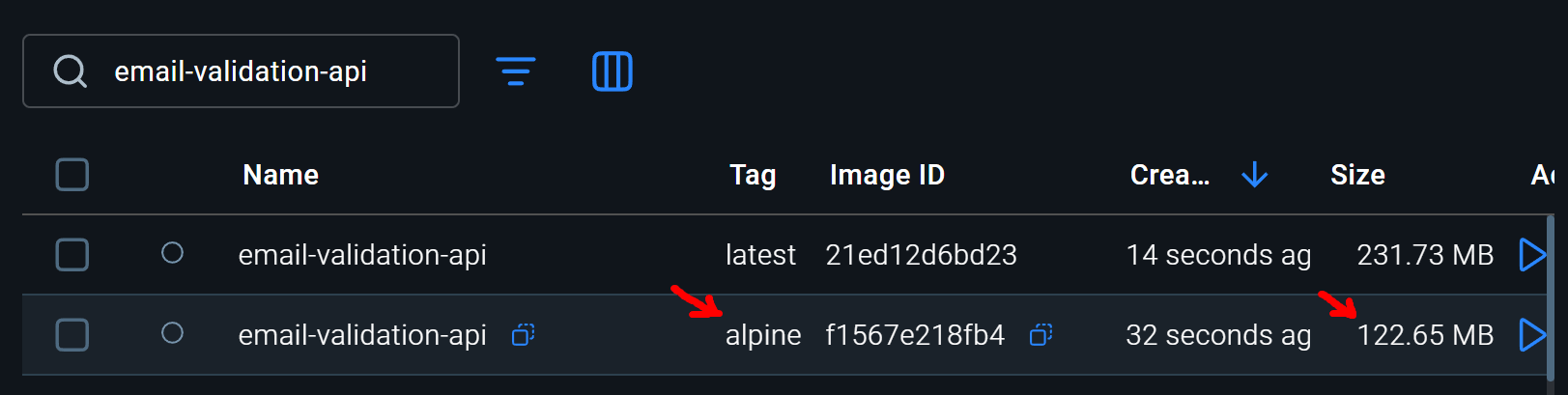
Here's the size difference between the default and Alpine images for an ASP.NET Core app:
```text
| Base Image | Size (MB) |
| ------------------------------------------- | --------- |
| mcr.microsoft.com/dotnet/aspnet:10.0 | 231.73 |
| mcr.microsoft.com/dotnet/aspnet:10.0-alpine | 122.65 |
```
You can see a significant size reduction by switching to `alpine`.
### Configuring Ports
For web applications, the default exposed ports are `8080` and `8081` for HTTP and HTTPS.
These are inferred from ASP.NET Core environment variables (`ASPNETCORE_URLS`, `ASPNETCORE_HTTP_PORT`, `ASPNETCORE_HTTPS_PORT`).
The `Type` attribute can be `tcp` or `udp`.
```xml
```
## Publishing to a Container Registry
Publishing locally is useful for development, but you'll want to push to a registry for deployment.
You can specify the target registry during publishing.
Here's an example publishing to GitHub Container Registry:
```bash
dotnet publish --os linux --arch x64 /t:PublishContainer /p:ContainerRegistry=ghcr.io
```
**Authentication**: The SDK uses your local Docker credentials.
Make sure you've logged in with `docker login` before publishing to a remote registry.
However, **I don't use the above approach**.
I prefer using docker CLI for the publishing step, as it gives me more control over authentication and tagging.
## CI/CD Integration
Here's what I'm doing in my [**GitHub Actions workflow**](https://milanjovanovic.tech/blog/how-to-build-ci-cd-pipeline-with-github-actions-and-dotnet) to build and push my .NET app container.
I left out the boring bits of seting up the .NET environment and checking out code.
This will build the container image, tag it, and push it to [GitHub Container Registry](https://docs.github.com/en/packages/working-with-a-github-packages-registry/working-with-the-container-registry):
```yaml
- name: Publish
run: dotnet publish "${{ env.WORKING_DIRECTORY }}" --configuration ${{ env.CONFIGURATION }} --os linux -t:PublishContainer
# Tag the build for later steps
- name: Log in to ghcr.io
run: echo "${{ env.DOCKER_PASSWORD }}" | docker login ghcr.io -u "${{ env.DOCKER_USERNAME }}" --password-stdin
- name: Tag Docker image
run:
docker tag ${{ env.IMAGE_NAME }}:${{ github.sha }} ghcr.io/${{ env.DOCKER_USERNAME }}/${{ env.IMAGE_NAME }}:${{ github.sha }} |
docker tag ${{ env.IMAGE_NAME }}:latest ghcr.io/${{ env.DOCKER_USERNAME }}/${{ env.IMAGE_NAME }}:latest
- name: Push Docker image
run:
docker push ghcr.io/${{ env.DOCKER_USERNAME }}/${{ env.IMAGE_NAME }}:${{ github.sha }} |
docker push ghcr.io/${{ env.DOCKER_USERNAME }}/${{ env.IMAGE_NAME }}:latest
```
Once my images are up in the registry, I can deploy them to my VPS.
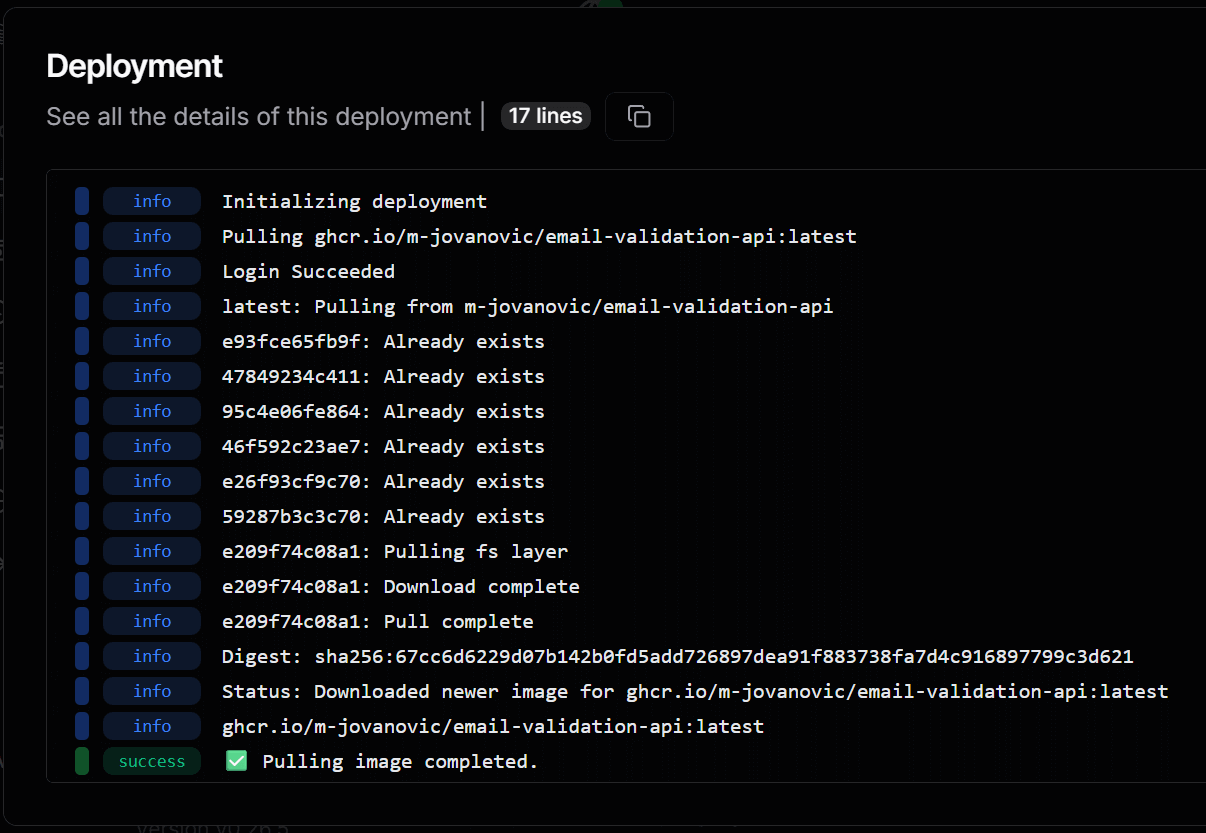
I'm using [Dokploy](https://dokploy.com/) (a simple but powerful deployment tool for Docker apps) to pull the latest image and restart my service.
```yaml
deploy:
runs-on: ubuntu-latest
needs: build-and-publish
steps:
- name: Trigger deployment
run: |
curl -X POST ${{ env.DEPLOYMENT_TRIGGER_URL }} \
-H 'accept: application/json' \
-H 'Content-Type: application/json' \
-H 'x-api-key: ${{ env.DEPLOYMENT_TRIGGER_API_KEY }}' \
-d '{
"applicationId": "${{ env.DEPLOYMENT_TRIGGER_APP_ID }}"
}'
```
This kicks off a deployment on my VPS, pulling the latest image and restarting the container.
By the way, I'm running my VPS on [Hetzner Cloud](https://www.hetzner.com/cloud) - highly recommended if you're looking for affordable and reliable VPS hosting.
## When You Still Need a Dockerfile
The SDK container support is powerful, but it doesn't cover every scenario.
You'll still need a Dockerfile when:
- **Installing system dependencies**: If your app needs native libraries (like `libgdiplus` for image processing)
- **Complex multi-stage builds**: When you need to run custom build steps
- **Non-.NET components**: If your container needs additional services or tools
For most web APIs and background services, the SDK approach is sufficient.
## Summary
The .NET SDK's built-in container support removes the friction of containerization.
You get:
- **No Dockerfile to maintain** - one less file to worry about
- **Automatic base image selection** - always uses the right image for your framework version
- **MSBuild integration** - configure everything in your `.csproj`
- **CI/CD friendly** - works anywhere `dotnet` runs
The days of copy-pasting Dockerfiles between projects are over.
Just enable the feature, customize what you need, and publish.
Thanks for reading.
And stay awesome!
---
## Frequently asked questions
### Can you containerize a .NET app without a Dockerfile?
Yes. Since .NET 7, the SDK can publish an application directly to a container image with a single dotnet publish command using the PublishContainer target. It builds the app, selects an appropriate base image, and loads the image into Docker or Podman.
### How do you publish a .NET app to a container image?
Run dotnet publish --os linux --arch x64 /t:PublishContainer. On .NET 10 nothing extra needs to be enabled, and it works for ASP.NET Core apps, worker services, and console apps. You customize the image name, tags, base image, and ports through MSBuild properties in the csproj.
### How do you change the base image for SDK container publishing?
Set ContainerBaseImage in the csproj, for example mcr.microsoft.com/dotnet/aspnet:10.0-alpine, or set ContainerFamily to alpine and let the rest be inferred. Switching an ASP.NET Core app to the Alpine image cut the size from 231.73 MB to 122.65 MB in the demo.
### When do you still need a Dockerfile for .NET?
When you install system dependencies like native libraries (libgdiplus for image processing), run custom steps in complex multi-stage builds, or bundle non-.NET components in the container. For most web APIs and background services, SDK container publishing is sufficient.
### How do you push an SDK-published container image to a registry?
Either pass ContainerRegistry during publish (for example /p:ContainerRegistry=ghcr.io), which reuses your local Docker credentials, or publish locally and use the Docker CLI to tag and push, which gives more control over authentication and tagging. In CI, GitHub Actions can publish, tag, and push to GitHub Container Registry.