
Apply EF Core migrations in production from the deployment pipeline, using an idempotent SQL script or a migration bundle, and run that step before the application deploys. Keep each migration to one logical change and review the generated SQL before it runs. For changes that break old code, expand the schema first and contract it only after every deployed instance has moved to the new shape.
A migration is production code that can change both your schema and your data. If you ship the generated code without reviewing it, locking, data-loss, and deployment-order risks stay hidden until the change reaches a real database.
Migrations Are Production Code
EF Core migrations work great on your local machine. You run dotnet ef database update and the schema changes.
Production is different. You have:
- Multiple instances running the same database
- Zero-downtime deployments to maintain
- Rollback scenarios to plan for
- Data to preserve (you can't just drop and recreate)
- Team members creating conflicting migrations
EF Core migrations need the same discipline as any other production code. If you need a refresher on how migrations work mechanically, start with my detailed EF Core migrations guide. This article focuses on running them safely in production.
Creating Clean Migrations
One Migration Per Logical Change
Don't combine unrelated schema changes. If you're adding a column to Orders and creating a new Payments table, make two separate migrations:
dotnet ef migrations add AddShippingAddressToOrders
dotnet ef migrations add CreatePaymentsTable
Smaller migrations are easier to review, easier to roll back, and cause fewer merge conflicts.
Review Generated SQL
Always inspect what EF Core generates:
dotnet ef migrations script --idempotent
The idempotent flag checks the migrations history table and skips migrations that completed successfully. It does not make every statement independently retryable: a transaction-suppressed operation can succeed even if the migration later fails before its history row is recorded.
Review the output for:
- Unexpected
DROPstatements - Missing indexes
- Data loss operations (column type changes, table drops)
Name Migrations Descriptively
✗ Migration1, Update2, Fix3
✓ AddShippingAddressToOrders, CreatePaymentMethodsTable, AddIndexOnOrderStatus
Migration names should describe the change.
How Should You Apply Migrations in Production?
Option 1: SQL Scripts in CI/CD
Generate an idempotent SQL script and run it as a deployment step:
dotnet ef migrations script --idempotent -o migrations.sql
Then apply it (with psql for PostgreSQL, or the equivalent client for your database):
psql "$DATABASE_CONNECTION_STRING" -f migrations.sql
Pros: Full control, works with any deployment tool, can be reviewed before execution. Cons: Manual pipeline setup.
Option 2: Migration Bundles
EF Core 6+ supports migration bundles (self-contained executables that apply migrations):
dotnet ef migrations bundle --self-contained -o efbundle
Then in your deployment:
./efbundle --connection "Server=myserver;Database=mydb;..."
Pros: No SDK needed at deployment time, single file, idempotent by default. Cons: Bundle needs to match your target runtime.
Option 3: Migrate on Startup (Use With Caution)
using var scope = app.Services.CreateScope();
var dbContext = scope.ServiceProvider.GetRequiredService<AppDbContext>();
await dbContext.Database.MigrateAsync();
Pros: Simple, automatic. Cons: Before EF Core 9, two instances starting simultaneously can conflict. EF Core 9 and later take a database-wide migration lock, so instances wait for each other instead. Startup is slower. Failed migration blocks the application from starting.
I only recommend this for single-instance deployments or development environments.
Handling Data Migrations
Keep schema migrations (which change structure) separate from data migrations (which change content).
Don't do this in a migration:
// Bad - mixing schema and complex data changes
migrationBuilder.Sql(@"
    UPDATE Orders
    SET Status = CASE
        WHEN OldStatus = 1 THEN 'Draft'
        WHEN OldStatus = 2 THEN 'Confirmed'
        ELSE 'Unknown'
    END;
    ALTER TABLE Orders DROP COLUMN OldStatus;
");
Do this instead:
- Migration 1: Add new column
- Deploy data migration script (or background job)
- Migration 2: Drop old column
This multi-step approach is safer because you can verify the data migration worked before dropping the old column.
Zero-Downtime Migrations
Adding a nullable column (or one with a default value) is easy, because old code ignores it and new code uses it.
Removing a column is dangerous, because old code might still reference it during rolling deployments.
The safe pattern for breaking changes:
Step 1: Expand. Add the new column/table. Deploy code that writes to both old and new.
Step 2: Migrate. Backfill data from old to new.
Step 3: Contract. Deploy code that only uses the new column. Then drop the old one.
This is called the expand-contract pattern. It ensures both the old and new versions of your application work at every step.

I go deeper on this in zero-downtime migrations with EF Core, and there's a practical demo using password hashing if you want to see the pattern applied end to end.
Handling Merge Conflicts
When two developers create migrations from the same base:
- Developer A creates
AddShippingAddress(snapshot → A) - Developer B creates
AddPaymentMethod(snapshot → B) - When merged, B's migration and snapshot don't include A's changes (on EF Core 10 and earlier, Git may merge the snapshot file without reporting a conflict)
Fix: recreate Developer B's migration on top of A's. Abort the merge, delete B's generated migration files, and restore the model snapshot from before B's migration, keeping B's entity and configuration changes. Then merge A's changes and add the migration again:
# Add it back (now based on the merged snapshot)
dotnet ef migrations add AddPaymentMethod
Don't run dotnet ef migrations remove after the merge.
It restores the snapshot from the previous migration's metadata, which may not include the other branch's changes.
Prevention: coordinate migrations. Only one migration branch should be in-flight at a time.
Seeding Reference Data
Use migrations for reference data that your application requires:
migrationBuilder.InsertData(
    table: "OrderStatuses",
    columns: new[] { "Id", "Name" },
    values: new object[,]
    {
        { 1, "Draft" },
        { 2, "Confirmed" },
        { 3, "Shipped" },
        { 4, "Delivered" },
        { 5, "Cancelled" }
    });
For large datasets or dynamic data, use a separate seeding tool or script instead of migrations.
I compare the options (including UseSeeding from EF Core 9) in seeding data with EF Core.
Index Management
Always add indexes through migrations. EF Core creates some automatically, but you should be explicit about performance-critical ones:
migrationBuilder.CreateIndex(
    name: "IX_Orders_CustomerId_Status",
    table: "Orders",
    columns: new[] { "CustomerId", "Status" });

migrationBuilder.CreateIndex(
    name: "IX_Orders_CreatedAt",
    table: "Orders",
    column: "CreatedAt",
    descending: new[] { true });
Create indexes concurrently on PostgreSQL when a normal build would block writes:
migrationBuilder.Sql(
    @"CREATE INDEX CONCURRENTLY ""IX_Orders_CreatedAt""
      ON ""Orders"" (""CreatedAt"" DESC);",
    suppressTransaction: true);
PostgreSQL rejects CREATE INDEX CONCURRENTLY inside a transaction, so suppressTransaction: true is required.
Put this operation in a dedicated migration and do not let the deployment runner wrap the generated script in an outer BEGIN/COMMIT block.
Concurrent creation performs extra scans and can wait on long-running transactions, so it avoids blocking writes but still has operational impact.
Transaction suppression also makes the migration non-atomic.
If the build or a later command fails, PostgreSQL can leave an invalid or already-created index while EF has no migration-history row.
Inspect the index state and drop an invalid index before retrying; do not hide the mismatch with IF NOT EXISTS.
My Recommended Pipeline
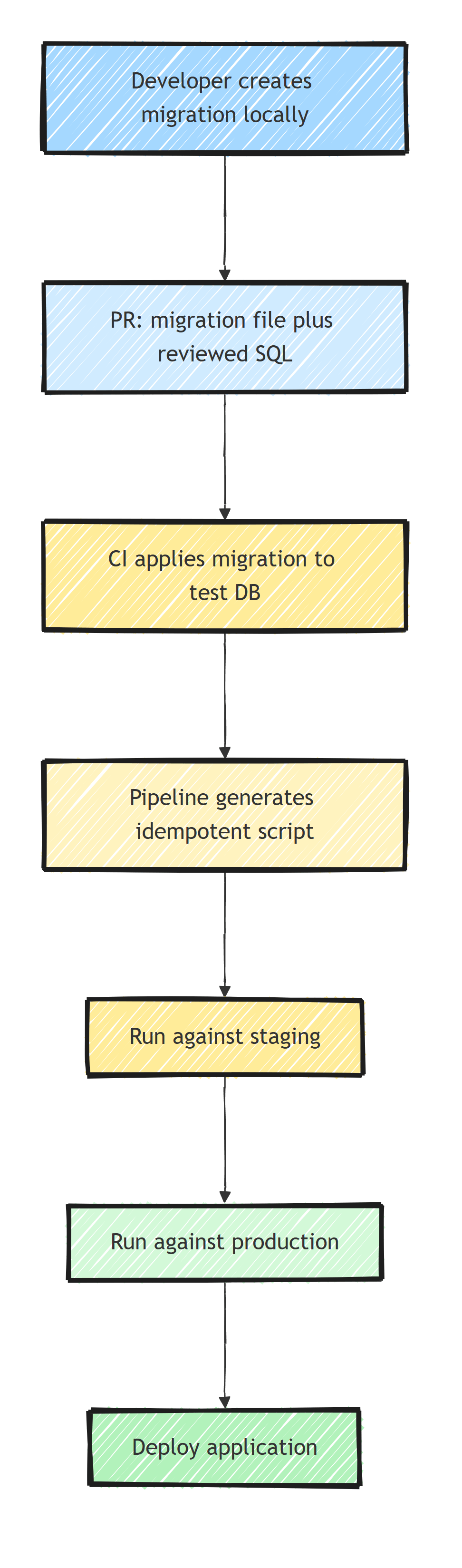
Migrations run before the application deploys, so the database schema is always ahead of the application code.
Summary
Keep each migration focused, review the generated SQL, and test it against a realistic copy of the database. Deploy idempotent scripts or bundles from the pipeline rather than having every application instance migrate at startup. For breaking changes, expand the schema first and remove the old shape only after all deployed code has moved away from it.
Frequently Asked Questions
How should I apply EF Core migrations in production?
Generate an idempotent SQL script or a migration bundle and run it as a deployment step before the application deploys. Avoid MigrateAsync on startup in multi-instance environments: before EF Core 9 concurrent instances can conflict, and a failed migration still blocks every instance from starting.
What does the --idempotent flag do in dotnet ef migrations script?
It generates SQL that checks the migrations history table before applying each migration, so the same script can run against a database at any migration and applies only the missing ones. It does not make a migration that failed partway safe to retry.
Should EF Core migrations run automatically on application startup?
Only for single-instance deployments or development. Before EF Core 9, simultaneous startups can race on schema changes (EF Core 9 and later take a database-wide migration lock), and a failed migration prevents the app from starting.
How do I do zero-downtime migrations with EF Core?
Use the expand-contract pattern: add the new schema first, deploy code that works with both old and new, backfill data, then remove the old schema in a later release. Every step keeps both app versions working.
How do I fix migration conflicts after a git merge?
Abort the merge, delete the migration files your branch created and restore the snapshot from before them (keep your model changes), merge, then add the migration again so it is based on the merged model snapshot. Do not run dotnet ef migrations remove after the merge, because it restores a snapshot that may not include the other branch's changes. Coordinating who has a migration in flight prevents most conflicts.
